Procedural Radio System
Last updated 15/11/2025
How to install (Legacy)
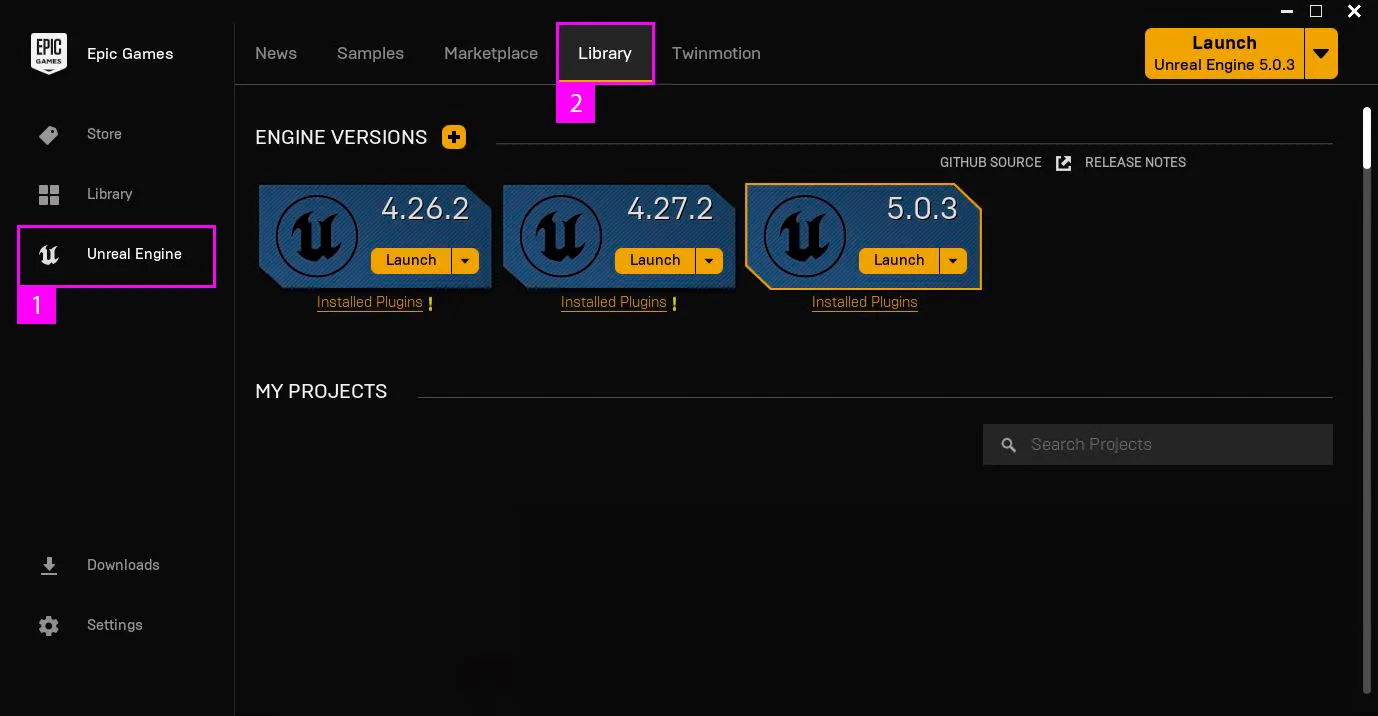
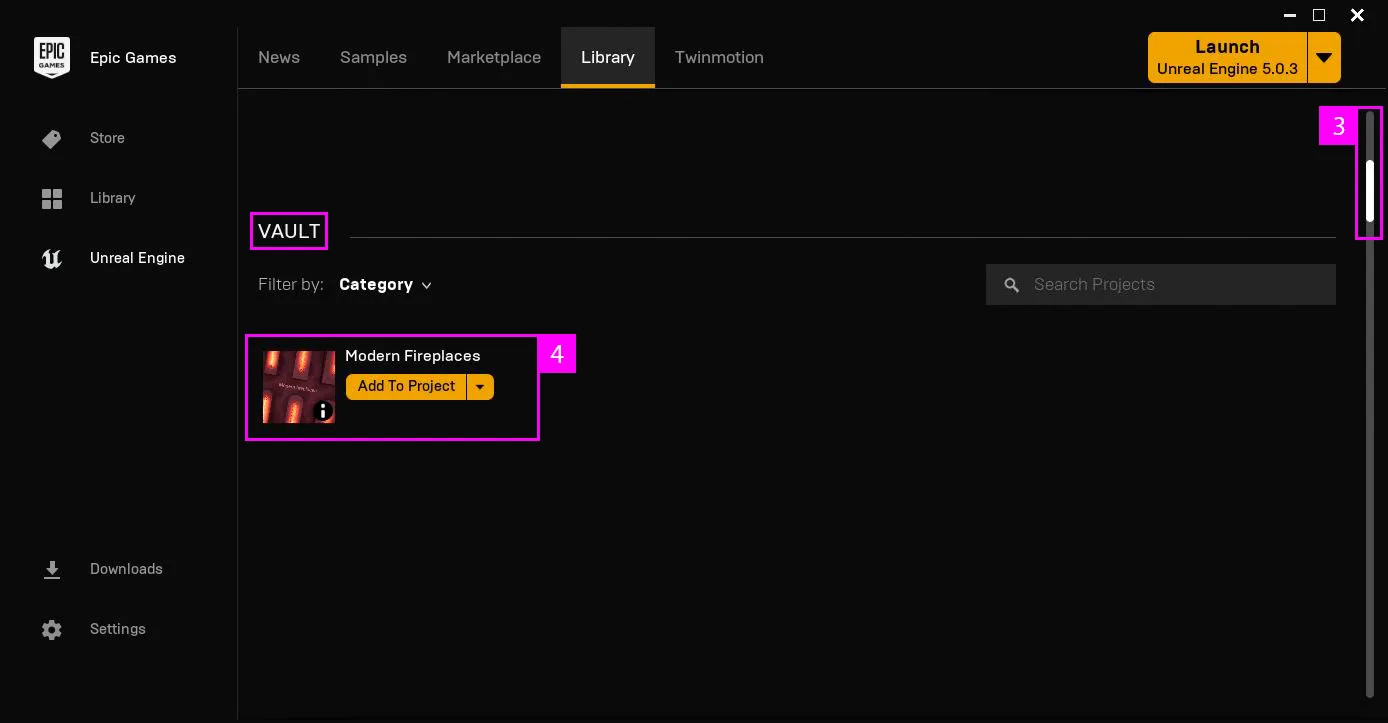
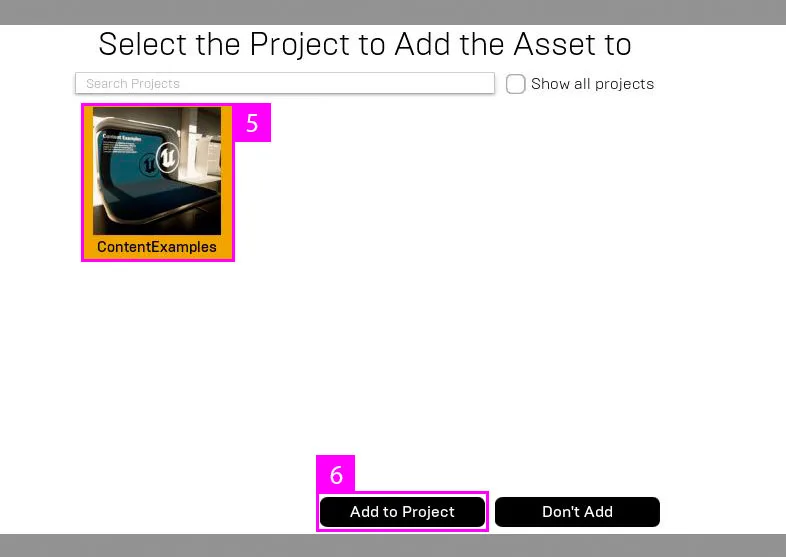
How to install (FAB)
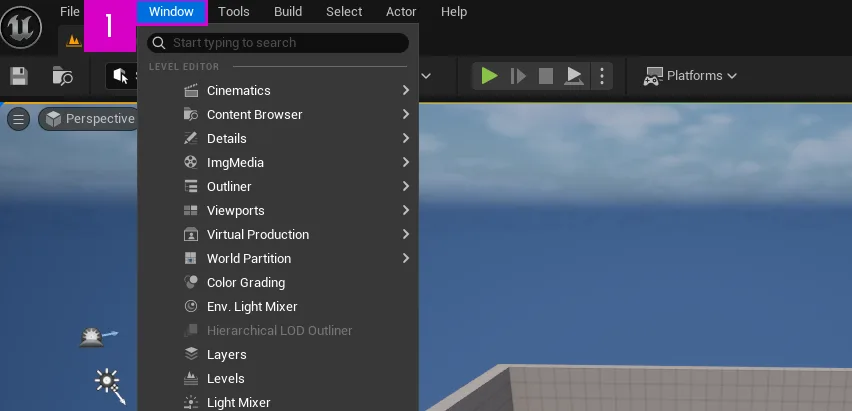
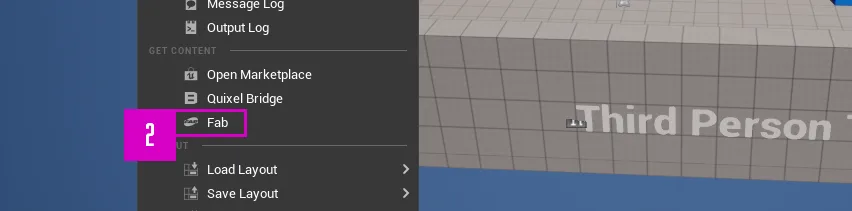
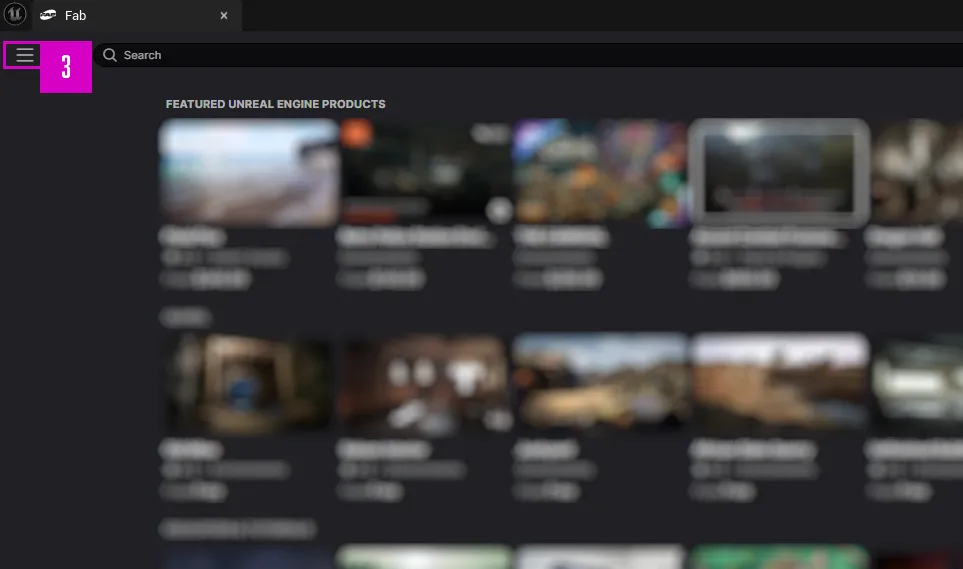
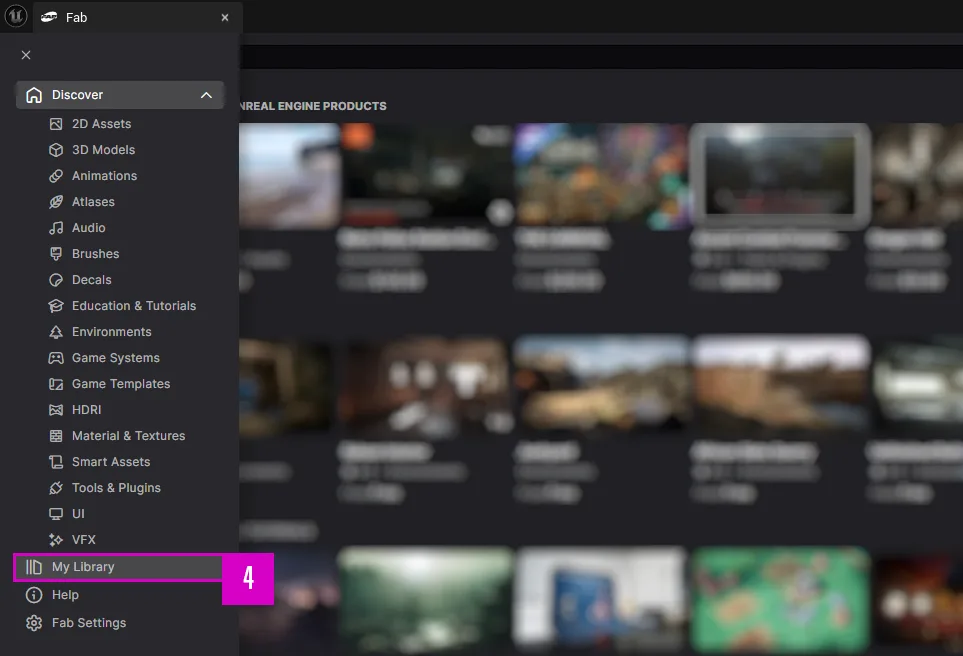
Tutorials
Overview and quick start intro
Features
Once you’ve placed a radio in your scene and selected it in the viewport, you’ll see configuration options in the Details panel. Each radio feature is described below, organized by group under each image.
Audio Effects
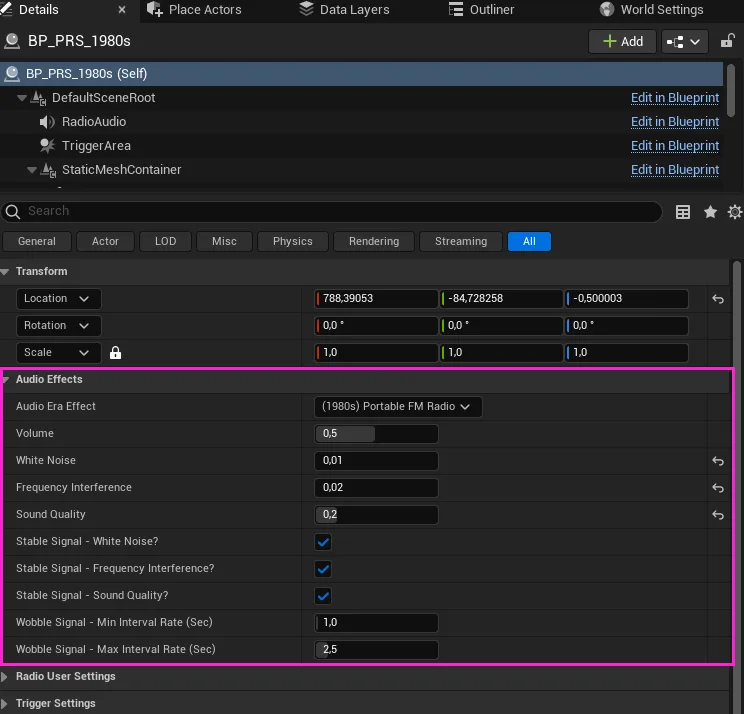
Audio Era Effect
Select the desired audio-era effect. Custom configurations are available under ‘User Settings’.
Volume
Set the radio’s starting volume
White Noise
This setting are system-defined. For custom configuration, select ‘User Settings’ under Audio Era Effects.
Frequency Interference
This setting are system-defined. For custom configuration, select ‘User Settings’ under Audio Era Effects.
Sound Quality
This setting are system-defined. For custom configuration, select ‘User Settings’ under Audio Era Effects.
Stable Signal – White Noise?
On = steady static. Off = random detune/jitter of the signal.
Stable Signal – Frequency Interference?
On = steady interference. Off = random jitter/modulation of the signal.
Stable Signal – Sound Quality?
On = consistent quality. Off = random fluctuations/modulation (simulates poor reception).
Wobble Signal – Min Interval Rate (Sec)
Sets how often the radio signal wobbles/jitters. The system randomly picks a time (in seconds) between the minimum and maximum.
Wobble Signal – Max Interval Rate (Sec)
Sets how often the radio signal wobbles/jitters. The system randomly picks a time (in seconds) between the minimum and maximum.
Audio Era Effect
Select the desired audio-era effect. Custom configurations are available under ‘User Settings’.
Radio Settings
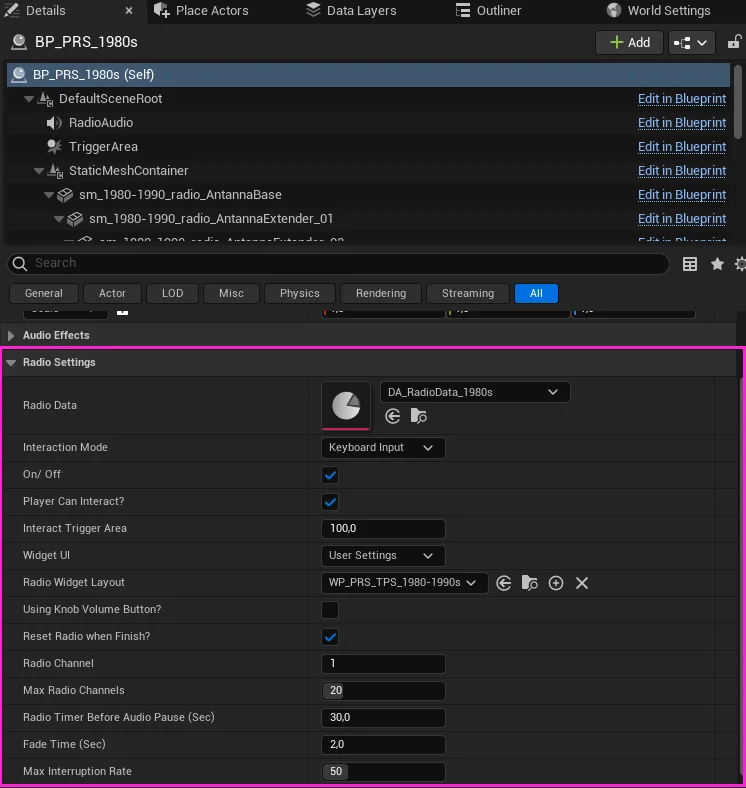
Radio Data
Add the radio content you want this radio to play (DataAsset).
Interaction Mode
Choose how players can operate the radio—e.g., change channels, adjust volume, or full controls.
On / Off
Should the radio be on or off at the start of the game?
Player Can Interact?
Is the player allowed to interact with the radio (change channels, adjust the volume, etc.)
Interact Trigger Area
The area that triggers the player’s ability to interact with the radio.
Widget UI
Set the preferred radio UI (widget)
Radio Widget Layout
For custom widgets only. Can only be used when (Widget UI) is set to “User Settings”
Using Knob Volume Button?
Enable if the radio uses a knob-style volume control
Reset Radio When Finish?
Should the radio system start over and replay the broadcast shows after all shows have finished?
Radio Channel
Set the radio channel the radio should start on when the game begins.
Max Radio Channels
Set the maximum number of radio channels.
Radio Timer Before Audio Pause (Sec)
How many seconds playing channels keeps playing after you switch away, before it pauses.
FadeTime (sec)
Fading time between audio tracks
Max interruption rate
Maximum number of tracks that can play before an interruption (advertisement/warning) is inserted
The sound attenuation zone
Change the sound zone
Select the RadioAudio component of the placed radio actor in your scene. Under Attenuation, set Sound Attenuation to your own asset (if you have one), or enable Override Attenuation (as shown in the second image below). You can then adjust the zone using Inner Circle and Falloff Distance.
Radio content (Data asset)
All radio content is stored in a Data Asset. These Data Assets contain the audio files and settings (e.g., shuffle Mode /). You’ll find them at Data → DataAssets.
By default, there’s one radio content asset for each radio era. To use your own content, either modify a preset or create a new one from scratch: duplicate DA_RadioData_Empty_DUPLICATE-ME from the Core folder, then rename and customize it.
Below the image is a list with description on each feature in the Data Assets does.
Important Notes & Restrictions
- Please do not use audio files shorter than 5 seconds, as the system may not run properly.
Update notes
Version 1.0 (rerlease version)
Added
- 13 Ready to play Radio Blueprints + 1 Master Blueprint
- 173 Audio files (music, talkshows, news, advertisements)
- 9 User Interface Radio widgets
- 126 Textures in (8k, and some diverse smaller textures under 1024)
- 81 meshes in total
- 16 materials (materials and Material Instances)